
Custom Swap
Trade an allowlisted custom token against a known profile asset across your wallets.
Custom Swap trades a token you have explicitly allowlisted on the profile against one of the profile's known assets — the project token, the native asset, the quote asset, or a registered stablecoin. Use it when treasury wallets hold, or need to hold, a token that is not part of the profile's own pair.
When to Use It
- Wallets received an airdrop or an unsolicited token and you want to convert it into a known asset
- You want to move idle treasury into a yield-bearing asset — for example, converting SOL into a staked SOL token like JitoSOL or mSOL, which is neither a stablecoin nor the profile's quote asset
- You need to acquire a specific outside token for operations — seeding a partner liquidity pool, paying a vendor in their token, or holding an ecosystem token the project has committed to
- You are exiting a position in a token you no longer want spread across treasury wallets
The tab only appears when the profile's chain supports Custom Swap and there is something to trade — or when you are an admin, who can add the first token inline.
Allowlisting a Custom Token
Tokens are not tradeable until an admin allows them. This is deliberate: the allowlist is what keeps a treasury swap from being pointed at an arbitrary address.
To add one from the modal:
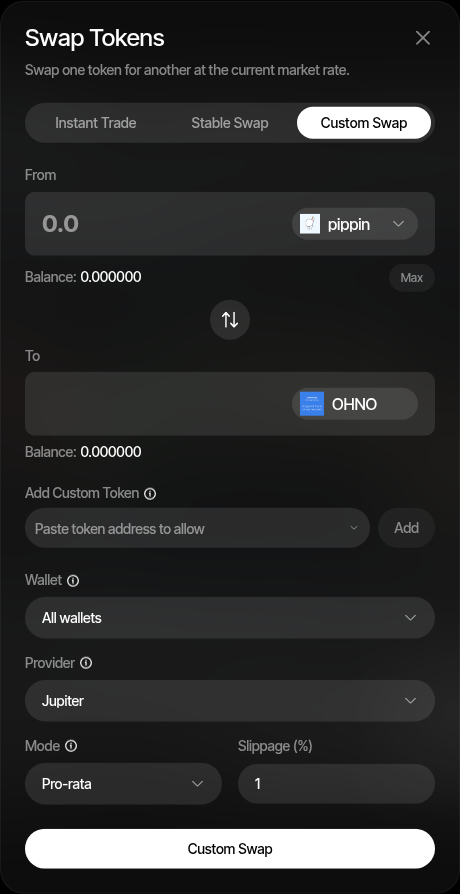
- Open the Custom Swap tab
- Paste the token address into the Add Custom Token field
- Pick the resolved token from the list — Sumo reads its symbol, name, and decimals on-chain
- Click Add
The token becomes available to every wallet on the profile immediately. Non-admin members can trade allowlisted tokens but cannot add new ones.
To remove a token, open Profile Settings and use the Custom Tokens section. There is no delete control in the swap modal, so a token cannot be dropped mid-trade by accident.
How to Use
- Open the profile's Wallets tab and click Swap
- Select the Custom Swap tab
- Choose the custom token and the known asset, using the reverse control to set the direction
- Enter the amount
- Select the wallet target: all wallets, selected wallets, one wallet, or a wallet group
- Choose the provider
- Choose the allocation mode
- Set slippage — custom tokens are volatile, so allow more room than you would on a stable pair
- Review the live quote and click Custom Swap
Allocation Modes
| Mode | Description |
|---|---|
| Pro-rata | Pulls from the selected wallets proportionally based on available input balance. |
| Rebalance | Pulls more from higher-balance wallets first so the selected wallets end closer to the same remaining input balance. |
| Fixed per wallet | Uses the same input amount for each selected wallet. |
Use pro-rata to move a total amount without changing relative wallet weights. Use rebalance when some wallets are heavier and you want the remainder evened out. Use fixed per wallet when each selected wallet should swap the same amount.
Fees
Custom Swap charges the standard platform swap fee — the same fee that applies to instant trades. See Platform Fees for the rates.
Supported Chains and Providers
| Chain | Providers |
|---|---|
| Solana | Best (default), Jupiter, DFlow, OKX DEX |
| Ethereum, BNB Smart Chain, Base, Robinhood Chain | Best (default), 0x, Uniswap API |
Best quotes every provider on the chain and executes through the one returning the most output, skipping any provider that fails to quote. Custom Swap is not available on Tron or Stable Mainnet.
Logs and Confirmations
After you submit a custom swap:
- Sumo submits the source transaction through the chain-specific execution path
- Treasury logs record the action as Custom swap
- Balances refresh after confirmation
- Failed swaps show the parsed failure reason in logs when available
A swap that fails because the price moved past its slippage reads "Price moved more than your X% slippage. Try again with higher slippage.", where X is the slippage that swap actually ran with (left out when the provider chose its own slippage and does not report it). On Solana, when the token charges a Token-2022 transfer fee, the message adds that the fee comes out of every transfer and suggests a slippage above the fee plus room for price movement (for example 5% for a 3% fee). Sumo does not raise your slippage for you. When any wallet of a run fails this way, the failure notification carries the same message.