
Account
User Settings
Change your password, email, and 2FA preferences.
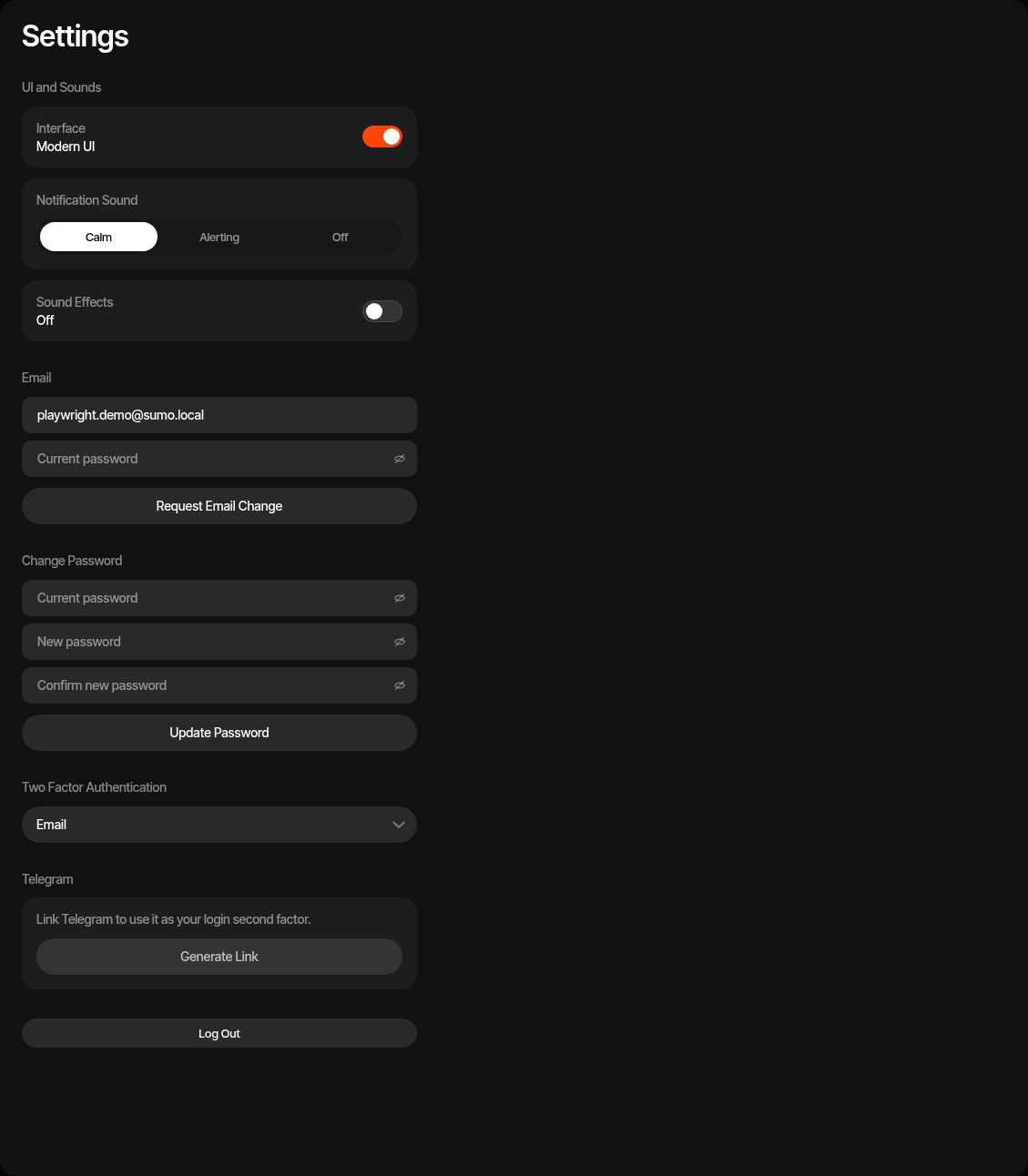
Manage your personal account settings from the Settings page.
UI and Sounds
Use the UI and Sounds section to control your local interface preferences:
- Interface — Switch between supported interface modes
- Notification Sound — Choose Calm, Alerting, or Off
- Sound Effects — Enable or disable interaction sounds
Change Password
- Enter your current password
- Enter a new password (minimum 8 characters)
- Confirm the new password
- Click Update Password
Change Email
- Enter your new email address
- Enter your current password for verification
- Click Request Email Change
- Enter the verification code sent to your new email
- Click Verify Email Change
Two-Factor Authentication
Sumo requires a second factor on every login. Choose your preferred method:
- Email — A verification code is sent to your email on each login
- Telegram — A verification code is sent via the Sumo Telegram bot
Change your preference using the Two Factor Authentication dropdown, then enter the one-time security code sent to your current method. The dropdown keeps the saved method until the code is accepted, and you get an email (and a Telegram message while linked) for every change.
To use Telegram 2FA, you must first link your Telegram account.
Telegram Linking
- Link — Click Generate Link, confirm with the security code sent to your email, then enter the link code in the Sumo Telegram bot
- Unlink — Click Unlink Telegram and confirm with the security code sent to your current method (reverts 2FA to email)
See Telegram Bot for the full setup guide.
Log Out
Use Log Out at the bottom of Settings to end the current browser session.