
Dashboard Overview
Understand the main Sumo dashboard after you log in.

After you log in, the dashboard gives you a high-level view of every trading profile in your organization. Use it to check which profiles are live, compare balances, and jump into the right workspace.
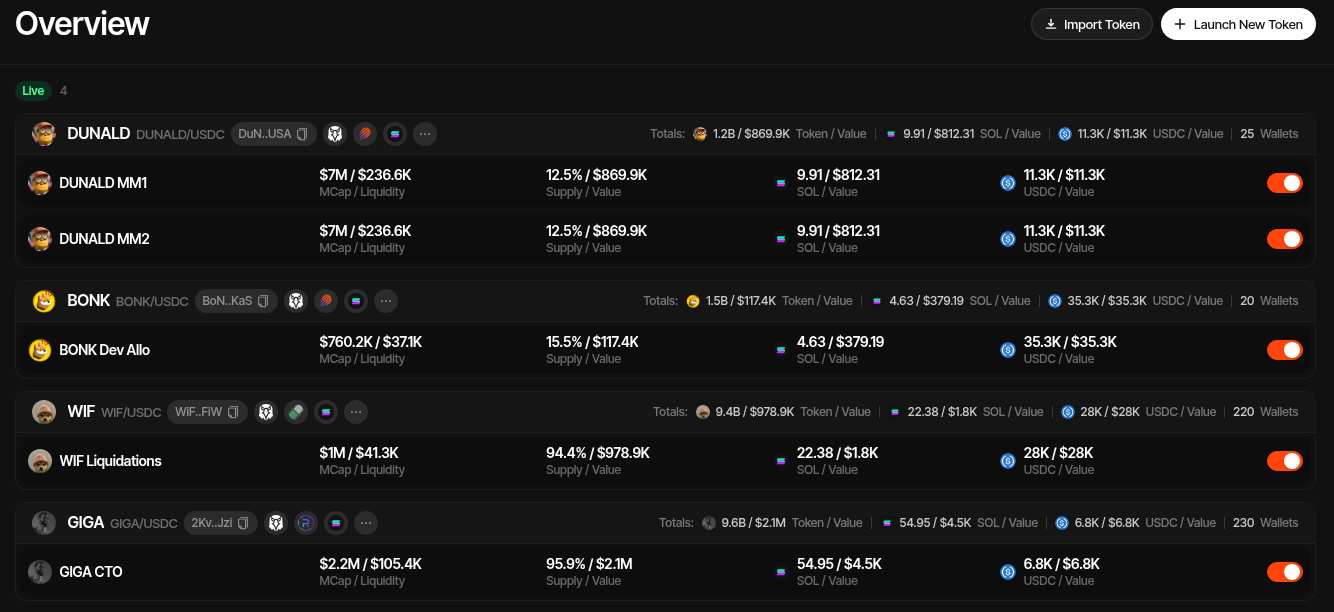
What You See
Each profile row shows the token, quote pair, pool address shortcut, supported integrations, and key treasury totals. Expanded rows show the wallets or wallet groups attached to that profile.
The dashboard highlights:
- Market cap and liquidity - Current project market cap and pool liquidity.
- Supply and value - How much token supply your wallets hold and its estimated value.
- Native or quote balance - SOL, ETH, BNB, USDC, or other quote assets available to the profile.
- Wallet count - Number of wallets attached to the profile.
- Status toggle - Enables or disables the profile from the dashboard.
Quick Actions
Use the buttons in the top-right to start the main setup flows:
- Import Token - Add an existing token or pool to Sumo.
- Launch New Token - Create a new token through one of Sumo's launch methods.
Each profile row also has quick action icons for common profile tasks, such as opening the profile workspace, copying the pool address, or accessing more actions.
Search and Ask AI
Press Ctrl+K (⌘K on Mac), or click the search box in the sidebar, to open the command palette. Type a few letters to jump to a page, open an action such as Withdraw or Fund Wallets, or switch profile. Inside a profile, its own actions are listed first.
To ask a question instead, type it and press Tab (or pick the Ask AI row). Sumo answers from these docs, adapted to the profile you are in: its chain, its launchpad and the features your organization has on. Each answer lists the pages it used and may offer buttons that take you to the right place. A button only opens the page or dialog; nothing is sent until you confirm there. Press Esc to go back and edit the question.
If the docs do not cover a question, Ask AI says so rather than guessing. Rate an answer with 👍 or 👎 to help us improve the docs. Each user can ask up to 200 questions a day, at no cost.
Clone a Profile
Use the clone icon on a profile row to create a copy of that profile inside the same organization. Cloning is available to Trader roles and above, and the clone dialog asks for a name for the new profile.
The clone copies:
| Copied | Notes |
|---|---|
| Profile settings | Chain, DEX, pool, token, and execution settings |
| Wallets | Cloned with the same on-chain addresses as the source profile, keeping each wallet's original status |
| Wallet groups | Group structure is rebuilt and re-pointed at the cloned wallets |
| Strategies | Copied and re-pointed at the cloned wallets and groups |
Some settings are deliberately not carried over, because they are specific to the source profile: fee and cashback overrides, fee collector assignments, viewer access links, and launch workflow state such as funding wallets, allocations, and wallet-group assignments. If the source was a launch profile, the clone keeps the launch method but not its in-progress launch data.
Clones Start Archived
A cloned profile is created with archived status and opens in Live Trading once created. Review its wallets and strategies, then activate it from the dashboard status toggle when you are ready to trade.
Cloned Wallets Share Addresses
Cloned wallets are not new wallets. They share the same on-chain address and key material as the source profile's wallets, so both profiles see the same balances and history. Generate new wallets instead if you need the clone to trade from separate addresses.
Copy or Transfer a Profile
Archived profiles can be copied to another organization with a transfer code. The destination organization generates a short-lived code and shares it with you; entering it in Copy or Transfer Profile sends the profile's operational state — settings, wallets, and groups — to the destination.
Historical records stay in the source organization: order history, fee accounting, referral attribution, and audit logs are never moved, and the source profile remains archived after a successful transfer. Codes are multi-use with a profile limit and expire after a few hours.
Sending a profile hands its wallet keys to the destination organization, so only an admin who may export private keys under your organization's Key Export policy can send one, and never while impersonated.