
Live Trading
Monitor trades in real-time as they happen on-chain.
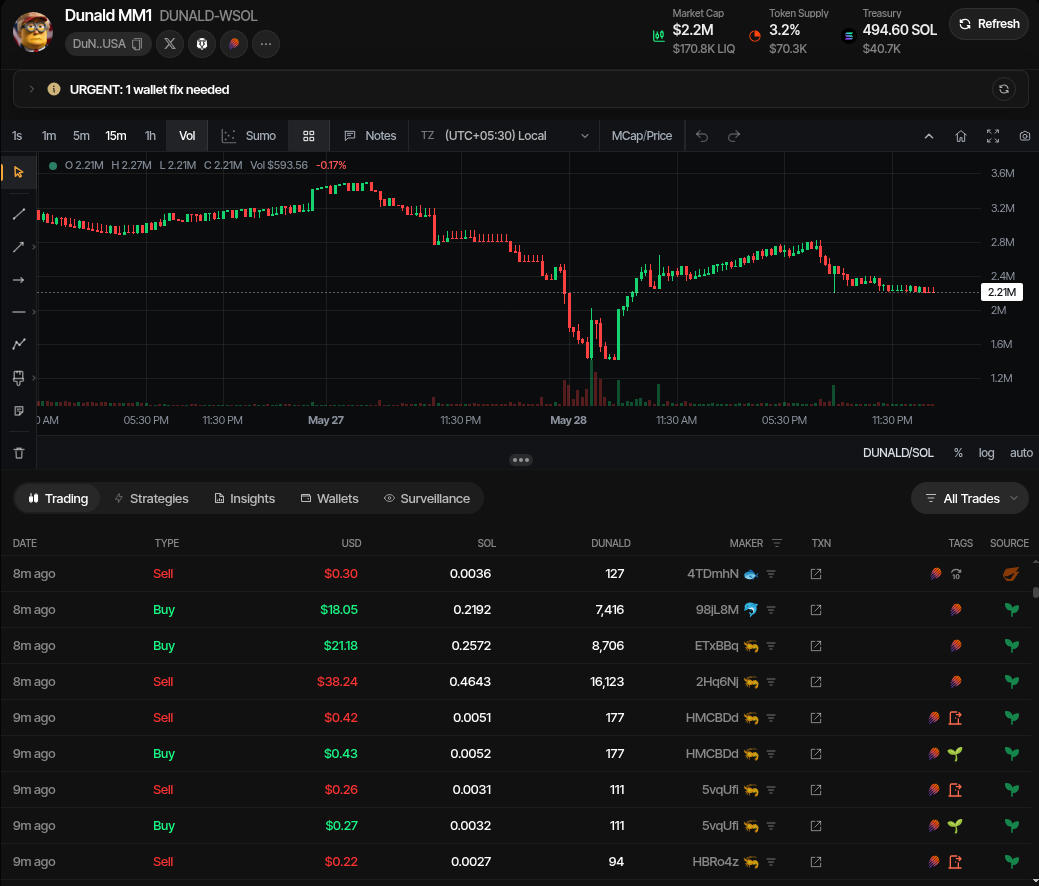
The Live Trading page is the main operating workspace for an active profile. It combines the live chart, streamed pool trades, strategy and wallet tabs, Insights views, and manual trade controls in one screen.
Chart
The chart shows live price or market-cap movement for the profile's pool. Use the interval controls to switch candle size, toggle Sumo trade markers and social callers, and use the display menu at the right end of the chart toolbar (for example $ USD · MCap ▾) to pick the axis (market cap or price) and, for tokens quoted in a non-stablecoin asset (SOL, ETH, BNB, or a custom quote such as MOTO), the currency: USD or the quote token itself, with prices such as 0.00000027 ETH, market cap as supply × quote price (for example 612 ETH), and volume bars in quote units. Quote mode shows only data that is natively quote-denominated, never USD candles relabelled, and both choices (axis and currency) are remembered per project in your browser. When you switch currency, the current chart stays on screen (a small spinner shows in the display menu) until the other currency's history has loaded, then the whole chart switches at once; switching back to a currency you already viewed is instant. When the chart first loads it shows candles as soon as they arrive and adds older history as it loads; while it has only a few candles (fewer than 50), the axis keeps at least a ±1% range so small moves are not exaggerated. Header stats and Technical Analysis stay in USD. Team chart notes pinned to a price are shown on the USD chart only. The display menu is also on Multi-Chart tiles and shared viewer links; for stablecoin quotes it offers the axis only, since both currencies look identical. The gear Chart settings menu turns volume, the grid, the bar countdown, and the hover card on or off; the hover card is the Price / Market Cap / Volume card that follows the cursor, and cards on Sumo bubbles, team notes, and callers still open when you hover them. The bar countdown and hover card settings are remembered in your browser for every chart. The drawing toolbar supports annotations such as trend lines, rays, paths, circles, and freehand marks.
The header above the chart shows current market and treasury metrics, including market cap, token supply held by profile wallets, native treasury balance, and quote treasury balance.
Indicators
Open ƒx next to the gear in the chart toolbar to add technical indicators. None are on until you add one; once some are, the button shows how many (for example ƒx 3).
| Indicator | Default | Drawn |
|---|---|---|
| SMA (Simple Moving Average) | Length 20 | Over the candles |
| EMA (Exponential Moving Average) | Length 20 | Over the candles |
| VWAP (Volume-Weighted Average Price) | Anchor: UTC day | Over the candles |
| BB (Bollinger Bands) | Length 20, 2 standard deviations | Over the candles (upper, middle, lower lines) |
| RSI (Relative Strength Index) | Length 14, upper 70, lower 30, no MA | Own pane below the chart (plus its moving average when one is chosen) |
| MACD | Fast 12, slow 26, signal 9 | Own pane below the chart (MACD line, signal line, histogram) |
-
Presets — the top of the ƒx menu has one-click sets. Clicking one replaces the indicators on this chart (no confirmation) and leaves the interval as it is; the timeframes in the names are only suggestions.
Preset Indicators Scalp (1m/5m) EMA 9, EMA 21, VWAP (UTC day), RSI 14 with limits 80 / 20 Swing (15m/1h) EMA 20, EMA 50, Bollinger Bands 20 / 2, MACD 12 / 26 / 9 You can edit, hide or remove anything a preset added, like any other indicator.
-
Add the same indicator more than once — for example EMA 20 and EMA 50; the second copy is drawn in a different shade. A chart holds up to 8 indicators.
-
Change settings — edit lengths inline in the ƒx menu, and for RSI its Upper and Lower limits (whole numbers from 1 to 99; upper always stays above lower: whichever you change, the upper is raised to one above the lower, and when both would be 99 the lower becomes 98). Values are applied when you leave the field or press Enter. Untick Limits to hide both dashed guides (the 50 line stays); your levels are kept and come back when you tick it again.
-
RSI moving average — the RSI row's MA menu adds a smoothing line over the RSI, like TradingView's RSI "Smoothing": SMA, EMA, SMMA (RMA) (Wilder's smoothing, the same one RSI itself uses) or WMA, with its own length (14 by default). No MA (the default) draws only the RSI. The average is drawn as a thinner yellow line in the RSI pane (with a matching yellow dot next to MA in the menu) and starts once there are that many RSI values.
-
Hide or remove — in the ƒx menu, the eye hides an indicator but keeps its settings; the cross removes it.
-
Reading values — each indicator line shows its latest value as a coloured label on the right axis. RSI sits in its own pane, scaled to fit its values and limits (within 0–100), with dashed guides at its upper and lower limits (70 and 30 unless changed, hidden when Limits is off) and a faint dotted line at 50; MACD has its own pane with the MACD line, signal line, histogram and a faint dotted zero line. On a phone or narrow tablet the chart gets taller for each RSI or MACD pane on it and shrinks back when they are hidden or removed, unless you have resized the chart yourself; your own height always stays.
-
VWAP anchor — VWAP restarts at each UTC midnight by default. Switch the anchor to UTC week (restarts Monday 00:00 UTC, useful on 4h–1d candles) or All loaded candles (one average over everything loaded, which shifts as older history loads).
Indicators are calculated in your browser from the candles on the chart, so they follow the selected interval, the MCap / Price axis and the USD / quote currency, and they update with every live trade. They use the candles as drawn: intervals with no trades are skipped, not filled. Each indicator starts once it has enough candles (for example the 20th candle for SMA 20). Your indicator list and settings are remembered per profile in your browser, so each profile (and each Multi-Chart tile) keeps its own set; a shared viewer link shows whatever set this browser has saved for that profile (none on a device that never added any). The indicator code only loads once a chart has an indicator, so charts without any stay as light as before.
Drawing Tools
Use the drawing toolbar to mark up the chart while monitoring live flow:
| Icon | Action | Use |
|---|---|---|
 | Select | Select, move, style, or delete existing drawings |
 | Trend Line | Mark support, resistance, or trend between two points |
 | Ray | Project a line forward from an anchored point |
 | Extended Line | Extend a trend line in both directions |
 | Parallel Channel | Draw a trend channel: click the start and end of the base line, then click where the parallel line should pass. Drag the middle handles to change the channel width |
 | Horizontal Ray | Mark a price or market-cap level from a point forward |
 | Horizontal Line | Mark a persistent price or market-cap level |
 | Fib Retracement | Draw Fibonacci retracement levels between a swing start and end point |
 | Vertical Line | Mark a point in time across the full chart height |
 | Cross Line | Mark a time and level crosshair at a single point |
 | Path | Sketch multi-point moves or scenarios |
 | Brush | Add freehand annotations |
 | Highlighter | Add broader freehand emphasis |
 | Circle | Highlight a specific chart area |
 | Arc | Mark a rounded top or bottom: click the start, the end, then the height. Drag the end handles or the apex to reshape it |
 | Curve | Sketch a curved move: click the start and the end, then drag the middle handle to bend it |
Drawings are saved in your browser for the current profile, pool, price/market-cap mode and chart currency (USD or quote). Refreshing the page, returning to the same chart, or switching interval restores them. Switching between price and market-cap mode, or between USD and quote, uses a separate drawing set.
The toolbar also supports:
- Undo / Redo — Use the toolbar buttons,
Cmd/Ctrl+Z,Cmd/Ctrl+Shift+Z, orCmd/Ctrl+Y - Escape — Finish or deselect the active drawing tool
- Delete / Backspace — Delete the selected drawing
- Copy / Paste —
Cmd/Ctrl+Ccopies the selected drawing andCmd/Ctrl+Vpastes a copy just below and to the right of it, selected so you can move it straight away; paste again to cascade more copies. Pasting after switching between price and market-cap mode places the copy at the same level on the other scale; pasting after switching between USD and quote keeps the drawing's on-screen position. Pasting on another profile's chart, or another Multi-Chart tile, keeps the drawing's on-screen size and position. Undo removes a paste. Copying selected text, or pasting into a text field, works as usual - Right click or click outside the chart — Finish or deselect the active drawing tool
- Clear drawings — Remove all drawings from the current chart view
Measure Range
Select Measure range  in the drawing toolbar, then drag across the chart to pick a time window. On desktop you can also hold
 Shift and drag at any time, without selecting the tool. The selected window stays highlighted as you scroll or zoom, and a card shows the market flow for it:
| Row | Buy / Sell | Net |
|---|---|---|
| Total | Every buy and sell on the pool in the window | Buys minus sells (buy pressure) |
| Sumo | Trades from this profile's wallets | Cash flow: sells minus buys |
| Organic | Everyone else (Total minus Sumo) | Buys minus sells |
Amounts are in USD, each trade converted at its own time's quote price, with the quote amount underneath. The numbers come from the pool's recorded trade history, so they include every wallet, not only Sumo orders. When that history does not reach back to the start of the window (for example a long window on a busy pool), the card says Market data from the time it starts, and all three rows cover only that part. Open in Insights opens the Insights tab with the same window as a Custom range. Press Escape or the close button to clear the selection.
Chart Footer Integrations
The footer strip under the chart links out to holder-analysis views without leaving the workspace:
- Bubblemaps — Opens the token's holder map. See Bubblemaps Analysis.
- InsightX — Opens the token in InsightX Atlas Live, an embedded holder and cluster analysis view. Available on Solana, Ethereum, BNB Chain, Base, Robinhood Chain, and Tron.
- Holders — Opens Sumo's holder analysis for the token: total holders, top 10 and top 20 concentration, and a supply-split pie of circulating supply.
- TA — Opens the technical analysis view.
The Holders supply-split pie shows these slices, in this order:
| Slice | What it counts |
|---|---|
| Sumo | Tokens held by the profile's Sumo wallets, including archived ones |
| Pool | Tokens held in the profile's pool vault |
| Surveillance | Tokens held by the profile's active and shared Surveillance wallets for this token. Shown only when the profile has such wallets; 0% when they hold nothing |
| Organic | Everything else |
Each wallet is counted once. When a wallet fits more than one slice, Pool comes first, then Sumo, then Surveillance, so a tracked wallet that is also a Sumo wallet or the pool address is not double counted. Burn and dead addresses are removed from supply before percentages are calculated and are never counted as Surveillance, even when a tracked wallet sent tokens there.
Callers
Turn on Callers in the chart toolbar to plot public calls about the token directly on the price action. Each bubble sits at the moment the call was posted and at the level the token traded at when it landed, so you can see whether a call preceded a move or chased one.
Sumo reads two sources:
- Pump.fun callouts — Posts from the token's Pump.fun page, with the poster's avatar, follower count, the price and market cap at call time, and the peak multiple reached since. Pump.fun's social layer is multi-chain, so these appear for Solana and EVM tokens alike, including Robinhood.
- FomoScan theses — Trader write-ups with the author's current position size, position PnL, and a developer flag when the author is the token's deployer. FomoScan indexes Solana, Ethereum, BSC, Base, Robinhood, Arc and Ink.
How to read the chart:
- Bubble size reflects how loud the call was relative to the others on screen — the busiest calls render largest.
- Ring colour identifies the source, and a small badge on each avatar marks it as a Pump.fun or FomoScan call. A tick marks a verified author.
- Stacked bubbles mean several calls landed at nearly the same moment and price; the stack shows a
+Ncount. - FomoScan callers show initials instead of a picture, because that provider does not expose author avatars.
Hover any bubble for the full call: author, follower count or position, the thesis text, any attached image, engagement counts, and a link out to the author's profile. Click a bubble to pin its card open while you keep working — hovering other bubbles still previews them, and the pinned card returns when you move away. Click the bubble again, press Escape, or click elsewhere on the chart to unpin. Hovering a stack lists the calls inside it; click a row to pin that one.
Caller data is fetched and cached by Sumo rather than read live from each source, so the overlay opens instantly and refreshes at most every few minutes. When a source is unavailable — rate limited, out of provider credits, or not offered on the profile's chain — the chart legend says so next to the caller count, and the remaining source still renders.
The toggle is per chart: it starts off and switches off again when you open another project, so only the tokens you choose to inspect are looked up. Callers are shown on the main Live Trading chart only, not on multi-chart boards.
Project Notes
Use Project notes to pin operating notes to the chart while you monitor price action. Notes can be tied to the current chart context, such as interval and price/market-cap mode, so a team can record why a level, event, or market condition mattered at the time.
Project notes are useful for:
- Marking support, resistance, or intervention levels
- Recording launch, migration, or liquidity events
- Leaving handoff notes for another trader or market maker
- Keeping founder-facing commentary beside the trading view
Team notes appear with the profile's other live-trading context, so operators can review market decisions without searching through chat history.
Workspace Tabs
The tabs below the chart keep the profile workflow in one place:
- Trading — Live trade feed and manual trade controls
- Strategies — Counter Trade, DCA, Limit Order, Grid, and other profile strategies
- Insights — Trading pulse, strategy breakdown, and execution health
- Wallets — Profile wallet balances and treasury actions
- Surveillance — Wallet tracking and activity monitoring
Trade Feed
The trade feed streams recent and live swaps on your token's pool. New rows continue arriving while filters are active, so chart updates and side-panel metrics keep moving even when the table is focused on a smaller subset.
| Column | Description |
|---|---|
| Date | Relative timestamp (e.g. "11s ago", "3m ago") |
| Type | Buy (green) or Sell (red) badge |
| USD | Dollar value of the trade |
| Quote | Amount of quote asset traded |
| Token | Amount of your token traded |
| Maker | Trader wallet. Click the filter icon beside it to load trades from that maker. |
| TXN | Link to the transaction on the block explorer |
| Tags | Signals and attribution icons for the trade |
| Source | Whether the trade is Organic or Sumo |
Trade Filters
Use the filter menu to narrow the table:
- All — Every trade on the pool
- Organic — Trades from external market participants
- Sumo — Trades executed by your strategies
- Signals — MEV, arbitrage, new holders, full exits, strategy types, holder size, and known trading platforms
The signal filter supports OR and AND matching, so you can either broaden the view or require multiple conditions at once.
Tags
Tags give each trade extra context at a glance.
| Icon | Tag | Meaning |
|---|---|---|
 | Arbitrage | The trade appears to be part of an arbitrage path. If the contract is unknown, the icon links to the contract address. |
 | MEV Actor | The trade is classified as the acting side of a sandwich-style MEV pattern. |
 | MEV Victim | The trade is classified as the affected trade inside a sandwich-style MEV pattern. |
 | New Holder | The maker had no token balance before the buy and holds tokens after it. |
 | Full Exit | The maker sold down to a zero or negligible token balance. |
 | Counter Trade | Trade executed by a Counter Trade strategy. |
 | DCA | Trade executed by a DCA strategy. |
 | Limit Order | Trade executed by a Limit Order strategy. |
 | Instant Trade | Manual buy or sell executed from Sumo. |
 | Whale | Maker balance is at least 1% of supply. |
 | Dolphin | Maker balance is at least 0.1% of supply. |
 | Fish | Maker balance is at least 0.01% of supply. |
 | Shrimp | Maker holds a smaller tracked balance. |
 | Trading platform | Known router, aggregator, DEX, or bot source. Examples include Jupiter, Raydium, Pump.fun, GMGN, Photon, OKX, 1inch, Uniswap, and others. |
The Source column is separate from Tags:
| Icon | Source | Meaning |
|---|---|---|
 | Organic | External market trade not attributed to Sumo. |
 | Sumo | Trade attributed to a Sumo wallet or Sumo strategy. |
Side Panel
The right panel keeps the live operating numbers visible while you watch the chart and feed.
Volume
The Volume card can be switched between 5m, 1h, 6h, and 24h windows. It shows:
| Metric | Description |
|---|---|
| Txns | Total buys and sells, with a green/red split bar for buy vs. sell count |
| Volume | Total traded USD volume, with buy volume and sell volume split out |
| Traders | Unique trader activity, with maker and taker counts shown side by side |
Trading Stats
The Trading Stats card summarizes Sumo-attributed trading performance:
| Metric | Description |
|---|---|
| Total Bought | Total quote value bought by Sumo trades, with USD value when pricing is available |
| Total Sold | Total quote value sold by Sumo trades, with USD value when pricing is available |
| PnL | Net Sumo trading PnL in quote terms and USD terms. Click the row to open the shareable PnL card. |
Manual Trading
Below the metrics, the panel contains manual execution controls:
- Quick Buy / Quick Sell presets for fast manual intervention
- Custom Trade for exact one-off buy or sell orders
- Swap button for the full trade modal, including Treasury Swap
When a profile trades against a stablecoin or custom quote token and its active wallets hold the native asset but none of the quote, a notice appears above Quick Buy: buys spend the quote, so nothing can execute yet. Its Convert button switches the Custom Trade panel to Convert mode with the native-to-quote pair already selected. The notice clears on its own once any quote balance arrives, and the × hides it until the page is next loaded. AutoFix offers the same conversion as a per-wallet fix for buy wallets assigned to active strategies.
Instant Trade
See Instant Trade for details on quick presets, custom trades, and treasury swaps.