
Surveillance
Monitor tracked wallets, token movements, and surveillance event logs.

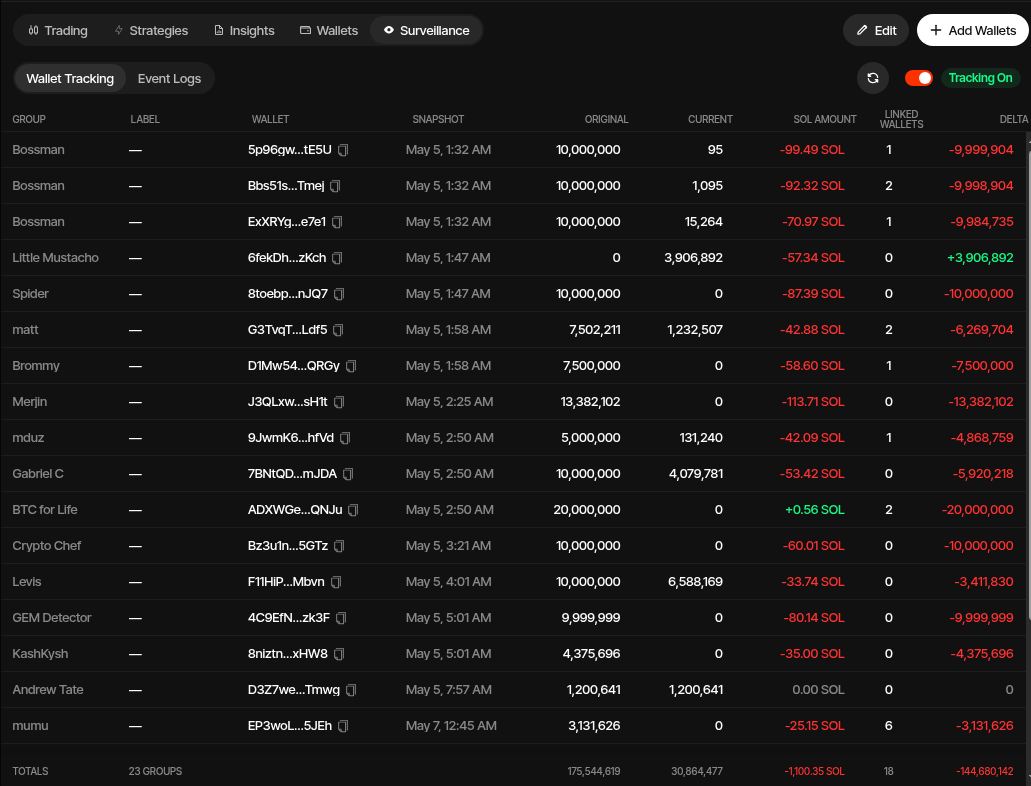
Surveillance monitors external project-related wallets such as founder, partner, or community wallets. It tracks token balances, follows token outflows into newly discovered wallets, and records the movements that matter for your profile.
Surveillance Tab
The Surveillance tab shows the live tracking state for every configured wallet group:
| Column | Description |
|---|---|
| Group | The wallet group being monitored, such as founders, partners, or market participants |
| Label | Optional label for the specific tracked wallet |
| Wallet | Truncated wallet address with copy button |
| Snapshot | Baseline snapshot time for the tracked wallet |
| Original | Token balance when tracking began (baseline) |
| Current | Live token balance |
| Counter Asset Amount | Current value in the profile's counter asset when available |
| Linked Wallets | Number of child wallets discovered via outflow follows |
| Delta | Change from original balance (negative = tokens left the wallet) |
The total row summarizes the original balance, current balance, and net delta across all tracked wallets.
Tracking Toggle
The Tracking On/Off toggle enables or disables surveillance for the profile. When enabled, Sumo refreshes balances and activity automatically.
Reconcile
Click Reconcile to manually trigger a balance refresh and replay recent wallet activity. Use this when you want an immediate update without waiting for the next automatic refresh.
Edit
Click Edit to add, remove, or rename tracked wallet groups and root wallet addresses. Changes take effect on the next poll or reconcile.
Saving always replaces the whole tracked list, in either mode:
- A wallet that stays in the list keeps its baseline, history, and followed wallets, even if you move it to another group. Only its label and notes change.
- A new address gets a fresh baseline from its balance at save time.
- A wallet you leave out stops being tracked, together with the wallets followed from it. Adding it back later starts a fresh baseline.
Add Wallets by CSV
The Add Wallets dialog has an Interactive / CSV switch. CSV mode is a text box where you paste one wallet per line instead of entering them one by one:
Founders, 7abc...xyz9, Treasury, Cold storage
Founders, 9def...uvw1
Market Makers, 4ghi...rst2, Desk A, "Moved in May, watch sells"- Columns are group, address, label, notes. Group and address are required on every line. Label and notes are optional and can be left off the end.
- There is no header row. A header line is reported as an invalid line.
- Separate values with commas, or paste straight from a spreadsheet (tab separated). Put a value in double quotes when it contains a comma; write a quote inside a quoted value as
"". - Lines with the same group name go into one group, so existing groups that share a name are combined when you save from CSV. Blank lines are ignored. Up to 500 lines per save.
- Switching to CSV fills the box with every wallet currently in the dialog, and switching back keeps what you typed, so removing a line removes that wallet on save.
- Every problem is listed with its line number (missing group, invalid or duplicate address, label over 120 characters, notes over 1,000 characters, group name over 100 characters). Nothing is saved until every line is valid.
- If the save would stop tracking wallets that are tracked now, a confirmation shows how many, including the wallets followed from them, before anything is saved.
CSV Export
The Wallet Tracking tab has its own CSV button that downloads the tracking table - group, label, wallet, snapshot, original and current balances, counter-asset gained, linked wallet count, and delta - using your browser's timezone for timestamps. This is separate from the Event Logs CSV export below.
Event Logs Tab
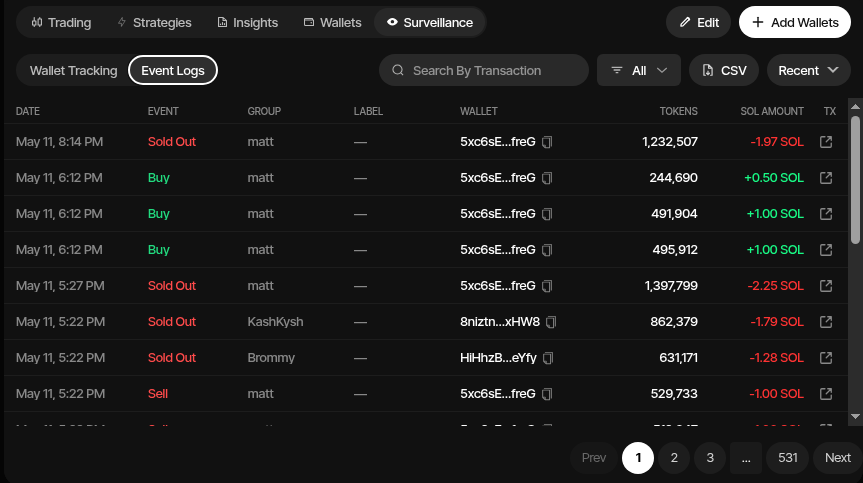
The Event Logs tab shows a chronological history of detected surveillance events:
| Column | Description |
|---|---|
| Date | When the event was detected |
| Event | Type of movement, such as Inflow, Outflow, Buy, Sell, Internal, Sold Out, or Outflowed Out |
| Group | Wallet group associated with the event |
| Label | Optional wallet label |
| Wallet | Wallet address involved in the event |
| Tokens | Number of tokens moved |
| Counter Asset Amount | Counter asset value when available |
| Tx | Link to the transaction on the block explorer |
Event Types
| Event | Meaning |
|---|---|
| Inflow | Tokens received from an external wallet |
| Outflow | Tokens sent to another wallet (which is then auto-followed) |
| Internal | Movement between wallets that are already part of the tracked tree |
| Buy | Tokens purchased via a DEX (detected by contract/program interaction) |
| Sell | Tokens sold via a DEX |
| Outflowed Out | Wallet fully emptied via outflow — tracking stops for that wallet |
| Sold Out | Wallet fully emptied via sell — tracking stops for that wallet |
Filtering & Sorting
- Event type filter — Filter by specific event types (All, Inflow, Outflow, Buy, Sell, etc.)
- Search — Search by transaction signature
- Sort — Toggle between Recent (newest first) and Oldest (oldest first)
CSV Export
Click the CSV button to download your event logs as a CSV file for external analysis or record keeping.
How Tracking Works
- Add root wallets — Configure wallet groups with one or more root addresses to watch
- Automatic follow — When a tracked wallet sends tokens to a new address, that address is automatically added to the tracking tree
- Custodial detection — Known exchange and custodial addresses are detected and excluded from follow chains to avoid noise
- Terminal states — Wallets that fully sell or outflow their tokens are marked as Sold Out or Outflowed Out and stop being actively tracked
Holders Pie
The Holders analysis on the Live Trading chart shows a Surveillance slice with the share of circulating supply your tracked wallets hold right now. It counts active and shared wallets (not Sold Out, Outflowed Out, or manually closed ones), whether the Tracking toggle is on or off. Wallets that are also Sumo wallets or the pool address stay in the Sumo or Pool slice. See Live Trading.
On Solana, the pie reads each tracked wallet's associated token account, the same way it reads Sumo wallets. The Current column on this tab reads every token account the wallet owns for the token, so a wallet that holds tokens in a non-associated account can show a lower amount in the pie than here.
Supported Chains
| Chain | Network |
|---|---|
| Solana | Mainnet |
| Ethereum | Mainnet |
| Base | Mainnet |
| BNB Chain | Mainnet |
| Stable | Mainnet |
| Robinhood Chain | Mainnet |
Wallet tracking is not available for Tron profiles.
Notifications
Surveillance events, except internal movements, generate in-app notifications and best-effort Telegram alerts to linked project groups. See Profile Notifications for notification settings.
Telegram Commands
In a linked Telegram group, /surveillance sends a rendered overview image with total wallets tracked, total counter-asset gained, net supply sold, and the top tracked wallets ranked by supply sold. Use /surveillance details for the full per-wallet table. /holders includes the same Surveillance slice as the web Holders pie. See Telegram Bot for setup.